WhatsApp OTP Templates: Avoiding the 5 Most Common Approval Rejections

Anandhi Moorthy

Senior Content Marketer
June 3, 2026

TLDR:

  • The most common reason WhatsApp OTP templates get rejected is selecting the wrong category. OTPs must always use the Authentication category, not Utility or Marketing.
  • OTP templates have a fixed message structure; customizing the body text with brand names, greetings, or extra explanations usually leads to rejection.
  • Incorrect variable formatting (e.g., {1} instead of {{1}}, skipped numbering, adjacent variables, or malformed placeholders) is a major source of INVALID_FORMAT errors.
  • OTP templates cannot contain URLs, emojis, images, videos, or other media elements in the message body.
  • The Authentication category can only be used for OTPs, login verification, 2FA, password resets, and account security checks, not order updates, appointment reminders, onboarding, or promotions.
  • Meta actively audits templates and may reclassify or reject templates even after initial approval if they violate updated policies.
  • Using the wrong category can increase messaging costs because Meta may classify the message as a marketing template.
  • Every OTP template should include a valid Copy Code or One-Tap Autofill button and follow Meta’s approved structure.
  • Before submission, verify category selection, variable formatting, and button setup, and ensure there are no links, emojis, media, or duplicate template names.
  • If a template is rejected, avoid resubmitting the exact same text; make small structural changes before trying again.
  • Reviews taking longer than 24 hours usually indicate the template has been moved to a manual review queue.

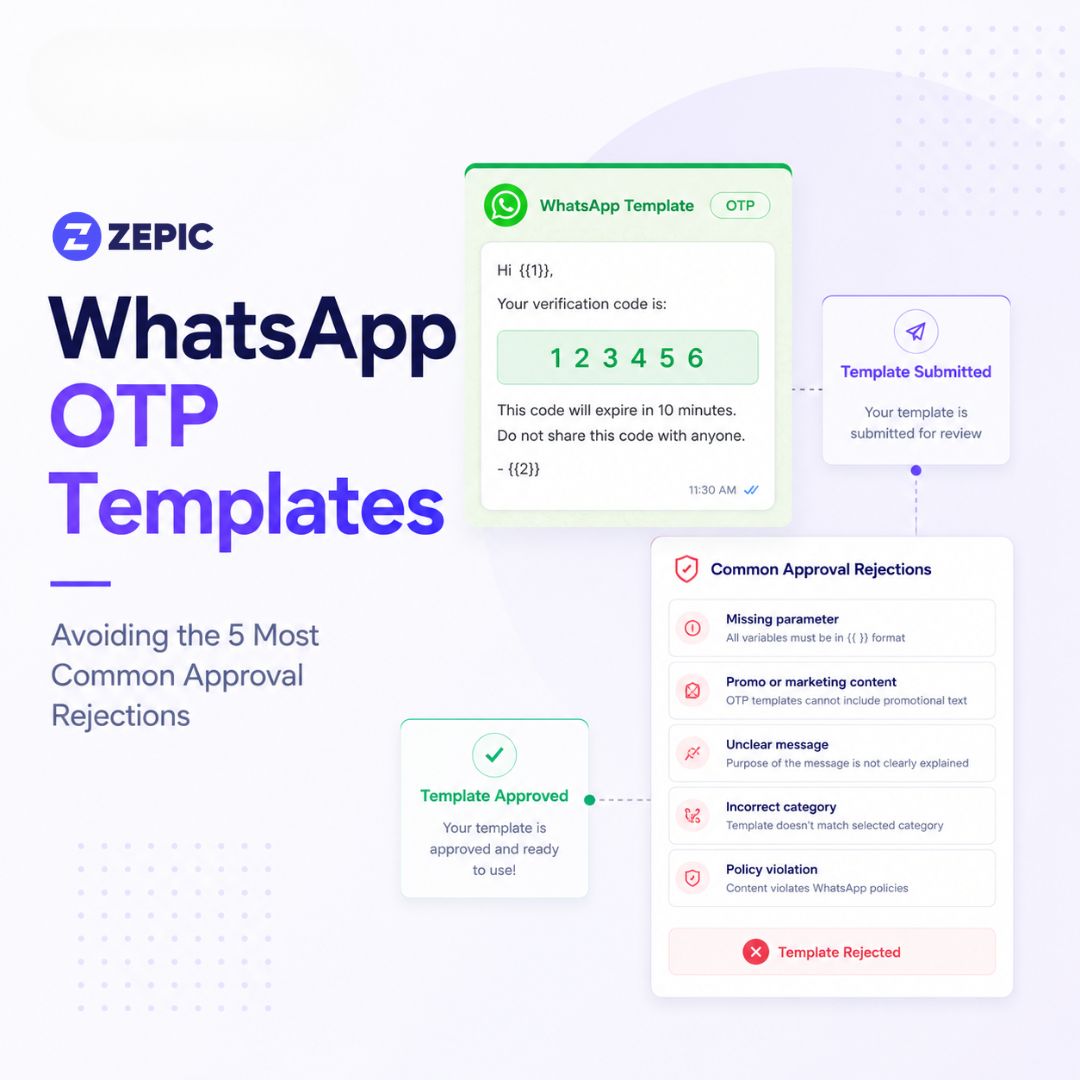
WhatsApp OTP templates are one of the most commonly used authentication templates. Though their template rejection rates are lower than marketing or utility messages, they can still get rejected by Meta.

Since these messages cost less than other categories, more often than not, few businesses try to sneak marketing messages into authentication templates. That’s why Meta maintains strict regulations for authentication messages. If your submission violates these guidelines, it gets flagged with an INVALID_FORMAT or category-mismatch error.

If you're scratching your head, wondering why your WhatsApp OTP messages were rejected, this article is for you. We’ve outlined the five most common rejections that stop your OTP texts from reaching your customers. 

1. Wrong Category (Utility Instead of Authentication)

Choosing the incorrect category is the most common WhatsApp OTP template approval rejection reason. This error impacts your operational billing long after the template goes live.

Many businesses create a WhatsApp OTP message and file it under the Utility category. They assume that because an OTP is transactional and non-promotional, it fits perfectly under the utility umbrella. 

While the logic is sound, that’s not how Meta does things. OTPs, login codes, and two-factor authentication (2FA) messages belong exclusively to the Authentication category.

So, filing your OTP messages under Utility will most definitely trigger a template category mismatch rejection. 

Beyond the initial frustration of a rejection, this error can also cost you money. Since January 2026, Meta has begun auto-reclassifying templates based on their content. 

If the system identifies the mismatch and accidentally classifies it as a marketing message, you will have to pay the messaging rates accordingly. Marketing messages have the highest per-text cost on the platform. When sending thousands of login codes daily, this cost difference can put a dent in your budget. 

2. Trying to Customise the Authentication Template Body

Most brands and customers love personalization, but unfortunately, an OTP template is not the place for that. 

While utility and marketing templates give you the freedom to add a personal touch, authentication templates are way stricter. 

Meta allows almost no text customization inside the body of your WhatsApp OTP template. The platform has a fixed core message, which looks like this: “{{1}} is your verification code."

When you attempt to add a brand name, alter the sentence flow, or insert explanatory notes into the body, your WhatsApp message gets rejected almost instantly. 

Components you can and can’t have in an OTP template:
Component Customizable? Notes
Body text ❌ No Fixed structure: {{1}} is your verification code.
Security disclaimer ✅ Optional toggle Fixed text: For your security, do not share this code.
Expiry warning (footer) ✅ Optional toggle Fixed text: This code expires in {{2}} minutes.
Button type ✅ Required You must choose either Copy Code or One-Tap Autofill.
Button label text ✅ Limited Only short, preset label modifications are allowed.

Example:

Rejected (Custom Body Text):
"Hi {{1}}, your BrandName login code is {{2}}. Valid for 10 minutes. Do not share."
Category: Authentication


Approved Template:
"{{1}} is your verification code.
For your security, do not share this code.
This code expires in 5 minutes."
[Copy Code Button]

3. Dangling/Malformed Variables 

If your template fails due to technical formatting errors, a dangling or malformed variable is likely the culprit.

What exactly is a dangling variable placeholder?

Variables are the placeholders in your WhatsApp OTP templates that get replaced with real data at send time. In your message, they look like this, {{1}}, {{2}}, etc. While they seem simple, Meta's validation system is extremely strict about their formatting. 

Here are some common variable issues that can lead to your WhatsApp OTP template being rejected. 

  • Mismatched Curly Braces: You use {1} instead of {{1}} or add extra braces like, {{{1}}}.
  • Non-sequential placeholder numbering: Submitting a template with {{1}} and {{3}} while skipping {{2}} causes an immediate error. Variables must follow a strict numerical order.
  • Adjacent placeholder variables: Placing two variables right next to each other like {{1}}{{2}} is prohibited. You must separate every variable with static, hardcoded text.
  • Special characters inside the brackets: Using formats as {{code}} or {{1%}} fails because the system accepts only clean, positive integers inside the double curly braces.

4. URLs, Media, or Emojis in the Template Body

The Authentication category has an outright ban on hyperlinked URLs, multimedia attachments, and emojis. Including any of these visual or interactive elements in your OTP template will lead to an INVALID_FORMAT error.

While images and emojis improve engagement in a checkout reminder, Meta eliminates these elements from authentication strings to reduce phishing vectors. 

Malicious scripts often use emojis to obscure text or embed deceptive URLs that mimic login screens. Keeping the message strictly text-based protects the end user.

Example:
Rejected Layouts:
"Your code is {{1}} 🔐. Do not share." (Contains an emoji).
"Your code is {{1}}. Verify here: https://brand.com/login" (Contains a URL inside the body text).

The WhatsApp OTP template copy code vs. the one-tap autofill choice depends heavily on your engineering setup. One-Tap Autofill creates a frictionless login process for native mobile applications. If your development team has not configured the required Android package hashes and intent filters, the Copy Code button serves as the most dependable fallback option.

5. Using the Authentication Category for Non-OTP Messages

The Authentication category exists for one purpose: secure, credential-based verification. Meta strictly enforces this boundary because authentication messages receive special treatment: they're exempt from the 24-hour conversation window requirement and bypass rate-limiting that applies to marketing and utility messages. This makes the category a prime target for abuse.

Businesses sometimes submit templates in the Authentication category, thinking it will improve delivery or reduce costs. But if Meta's review team determines the message is actually promotional, transactional, or conversational in nature, your template gets rejected immediately.

What Belongs in Authentication:
  • One-time passwords (6-digit codes, alphanumeric tokens)
  • Login verification codes
  • Two-factor authentication (2FA) prompts
  • Account security alerts (suspicious login detected)
  •  Password reset codes
  •  Identity verification during account recovery
What Does NOT Belong in Authentication:
  • Order confirmations ("Your order #12345 has shipped")
  •  Appointment reminders ("Your appointment is tomorrow at 2 PM")
  • Account updates ("Your profile has been updated successfully")
  •  Welcome messages to new users
  •  Transactional confirmations that aren't security-related
  •  Promotional messages or offers, even if framed as account benefits
  •  Multi-step onboarding flows that mix authentication with other content
 Pre-Submission Checklist: 60-Second OTP Template Audit

To avoid delays, integrate this technical checklist into your team's standard operating procedures. Review these points before submitting any security verification template to Meta:

  • The message category is explicitly set to Authentication, not Utility or Marketing.
  • The body text adheres precisely to Meta's unalterable template layout.
  • Every variable uses sequential numbering with zero gaps between numbers (e.g., {{1}}, {{2}}).
  • No two variables sit next to each other without static separating text.
  • The text contains no emojis.
  • The message body contains no URLs or deep links.
  • The template contains no multimedia attachments or images.
  • The designated OTP variable length does not exceed 15 characters.
  • A functional button component is included in the template setup (Copy Code or One-Tap Autofill).
  • No security, verification, or password-related phrases are present inside utility templates.
  • The security disclaimer and expiration text are toggled correctly as optional elements.
  • The template name does not duplicate any active or paused template in your WhatsApp Manager.

What to Do When Your OTP Template Gets Rejected Anyway

Even when you follow every technical rule, automated systems can sometimes produce unexpected results. If you run into unexpected hurdles with your WhatsApp OTP template approval, use these diagnostic steps to clear the block.

If you receive a generic rejection without an explicit error code, your copy likely triggered a secondary commerce policy review. Check the text against WhatsApp's core Business and Commerce policies to ensure you are not asking for sensitive data or restricted credentials.

You may also encounter a WhatsApp template rejected after approval. Meta frequently runs retrospective automated sweeps across the system. If an older verification message stops working unexpectedly, open your WhatsApp Manager console to check if the template was paused or reclassified during a recent compliance scan.

If a corrected submission is turned down a second time, avoid uploading the identical text string. Meta's automation remembers rejected strings and will auto-deny them. Introduce a minor structural update, such as modifying a punctuation mark or adjusting an optional footer element, before you hit the resubmit button.

When a review takes longer than 24 hours, your submission has been moved to a manual human review queue. This queue processing time is common for new WhatsApp Business accounts that lack an established messaging history. You can monitor your dashboard status or check other common reasons WhatsApp messages don't reach customers to optimize your configuration settings.

Choose a reliable WhatsApp marketing tool to increase your odds of getting approved. ZEPIC can help you send OTP templates at scale and bump up your messaging limits. Reach out to us today!

Frequently Asked Questions

Why does Meta reject WhatsApp OTP templates?

Meta typically rejects WhatsApp OTP templates because of formatting errors, placeholder issues, or incorrect template categorization. Authentication messages must use the dedicated Authentication category and follow Meta's predefined structure. Adding unsupported elements such as promotional text, external links, or custom content can result in rejection.

What is the correct format for a WhatsApp authentication template?

WhatsApp authentication templates follow Meta's predefined format for security and consistency. The message body should clearly communicate that the variable represents a verification code or authentication token. Businesses can optionally enable a security disclaimer and expiration notice, along with interactive actions such as Copy Code or One-Tap Autofill to improve the user experience.

What is the difference between a WhatsApp utility template and an authentication template for OTPs?

Authentication templates are designed exclusively for sending login codes, verification tokens, and security-related access credentials. Utility templates are intended for transactional communications such as order confirmations, appointment reminders, shipping updates, and account notifications. Using the wrong category can lead to approval issues, compliance concerns, and incorrect billing classifications.

Why does my WhatsApp template keep getting rejected with INVALID_FORMAT?

The INVALID_FORMAT error usually indicates issues with variable placeholders or message formatting. Common causes include placing variables at the beginning or end of a sentence without supporting text, using non-sequential placeholder numbering, adding unsupported emojis, or including prohibited content such as web links within the template body.

Can Meta reject a WhatsApp template after it has already been approved?

Yes. Meta regularly conducts automated compliance reviews and policy audits. A template that was previously approved may later be paused, reclassified, or rejected if it no longer complies with updated platform policies or template guidelines. Businesses should periodically review their approved templates and monitor notifications within their WhatsApp Business Manager account.

Desperate times call for desperate Google/Chat GPT searches, right? "Best Shopify apps for sales." "How to increase online sales fast." "AI tools for ecommerce growth."

Been there. Done that. Installed way too many apps.


But here's what nobody tells you while you're doom-scrolling through Shopify app reviews at 2 AM—that magical online sales-boosting app you're searching for? It doesn't exist. Because if it did, Jeff Bezos would've bought (or built!) it yesterday, and we (fellow eCommerce store owners) would all be retired in Bali by now.


Growing a Shopify store and increasing online sales isn’t easy—we get it. While everyone’s out chasing the next “revolutionary” tool/trend (looking at you, DeepSeek), the real revenue drivers are probably hiding in plain sight—right there inside your customer data.
After working with Shopify stores like yours (shoutout to Cybele, who recovered almost 25% of their abandoned carts with WhatsApp automation), we’ve cracked the code on what actually moves the needle.


Ready to stop app-hopping and start actually growing your sales by using what you already have? Here are four fixes that will get you there!

Fix #1: Convert abandoned carts instantly (Like, actually instantly)

The Painful Truth: You're probably losing about 70% of your potential sales to cart abandonment. That's not just a statistic—it's real money walking out of your digital door. And looking for yet another Shopify app for abandoned cart recovery isn't going to fix it if you're not getting the fundamentals right.

The Quick Fix: Everyone knows you need multi-channel recovery that hits the sweet spot between "Hey, did you forget something?" and "PLEASE COME BACK!" But here's the reality—most recovery apps are a one-trick pony. They either do email OR WhatsApp, not both. And don't even get us started on personalizing offers based on cart value—that usually means toggling between three different dashboards while praying your apps talk to each other.

Enter ZEPIC: This is where we come in. With ZEPIC's automated Flows, you can:
Launch WhatsApp recovery messages (with 95% open rates!)
Set up perfectly timed email sequences (or vice versa)
Create personalized recovery offers not just on cart value but based on your customer’s behavior/preferences
Track and optimize everything from one dashboard

Fix #2: Reactivate past customers today

The Painful Truth: You're probably losing about 70% of your potential sales to cart abandonment. That's not just a statistic—it's real money walking out of your digital door. And looking for yet another Shopify app for abandoned cart recovery isn't going to fix it if you're not getting the fundamentals right.

The Quick Fix: Everyone knows you need multi-channel recovery that hits the sweet spot between "Hey, did you forget something?" and "PLEASE COME BACK!" But here's the reality—most recovery apps are a one-trick pony. They either do email OR WhatsApp, not both. And don't even get us started on personalizing offers based on cart value—that usually means toggling between three different dashboards while praying your apps talk to each other.

Enter ZEPIC: This is where we come in. With ZEPIC's automated Flows, you can:
Launch WhatsApp recovery messages (with 95% open rates!)
Set up perfectly timed email sequences (or vice versa)
Create personalized recovery offers not just on cart value but based on your customer’s behavior/preferences
Track and optimize everything from one dashboard

Offering light at the end of the tunnel is Google’s Privacy Sandbox which seeks to ‘create a thriving web ecosystem that is respectful of users and private by default’. Like the name suggests, your Chrome browser will take the role of a ‘privacy sandbox’ that holds all your data (visits, interests, actions etc) disclosing these to other websites and platforms only with your explicit permission. If not yet, we recommend testing your websites, audience relevance and advertising attribution with Chrome’s trial of the Privacy Sandbox.

Top 3 impacts of the third-party cookie phase-out

Who’s impacted

How

What next

Digital advertising and
acquisition teams
Lack of cookie data results in drastic fall in website traffic and conversion rate
Review all cookie-based audience acquisition. Sign up for Chrome’s trial of the Privacy Sandbox
Digital Customer Experience
Customers are not served relevant, personalised experiences: on the web, over social channels and communication media
Multiply efforts to collect first-party customer data. Implement a Customer Data Platform
Security, Privacy and Compliance teams
Increased scrutiny from regulators and questions from customers about data storage and usage
Review current cookie and communication consent management, ensure to align with latest privacy regulations

Recent blog post

No items found.